Speed & Performance
How to run an accurate VPN speed test
2 min read·Updated September 16, 2026
Use the built-in Speed test and a repeatable baseline to compare locations and connection settings.
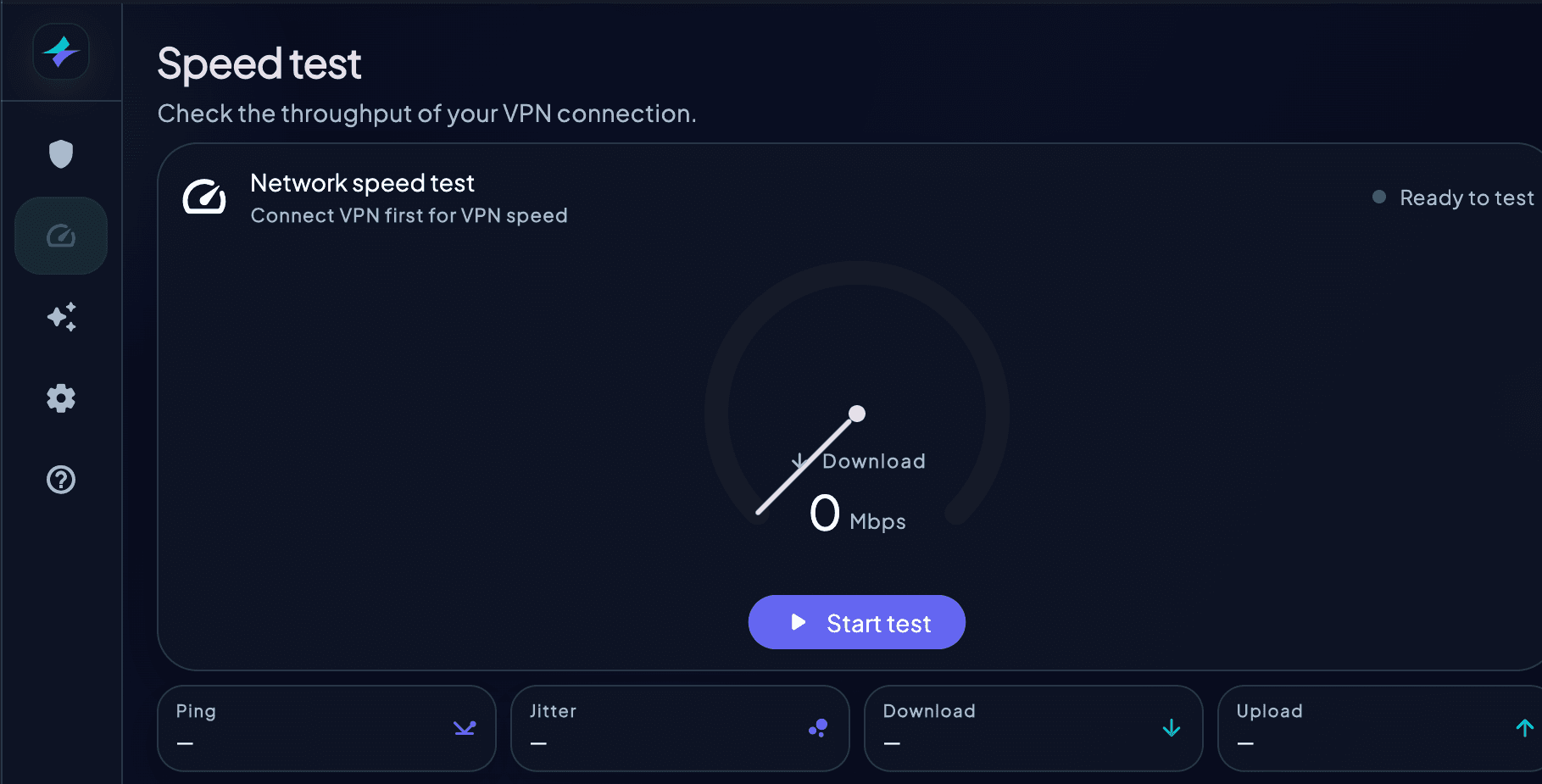
- 1Pause large downloads, cloud backups, and other heavy network activity
- 2Run HorizonVPN's built-in Speed test while disconnected to record a baseline when the platform allows it
- 3Connect with Protocol set to Auto and choose a nearby location
- 4Run the same test again under similar network conditions
- 5Repeat once with another nearby location if the result is unexpectedly low
- 6Compare latency, download, and upload results rather than relying on one number
There is no guaranteed percentage of your non-VPN speed. Wi-Fi quality, distance, congestion, device performance, protocol availability, and the test service can all change the result.
speed testbenchmarkmbpsperformancetest
Was this article helpful?